
How to Match Rooms Between Insurance and Insured Estimates With TurboClaim?
Understanding the Matching Screen in TurboClaims Estimate Comparison
Overview
This documentation provides an overview of the matching screen functionality within the TurboClaims estimate comparison process. It explains how to manually match rooms and line items between insurance estimates and insured estimates, as well as the role of AI in assisting with these matches.
Purpose of the Matching Screen 0:01
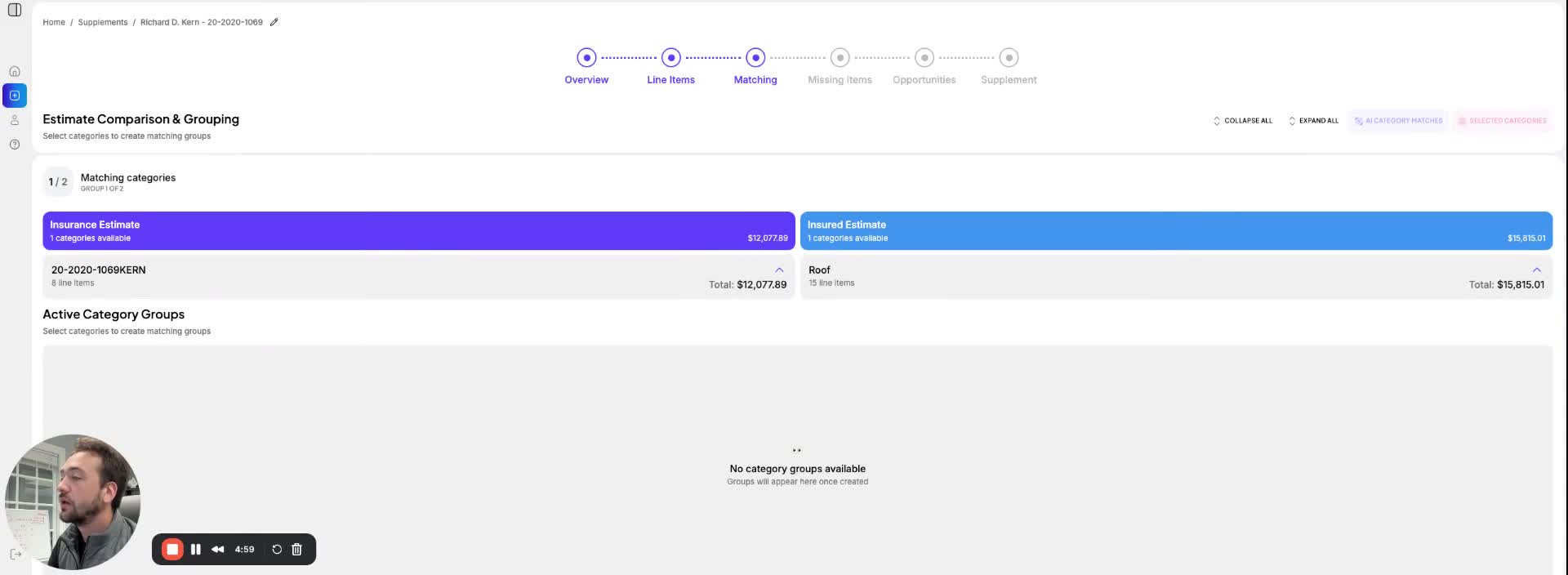
- The matching screen is designed to address the variability in naming conventions for rooms and line items across different estimates.
- It ensures that data aligns correctly for accurate comparison results.
AI-Assisted Matching 0:15
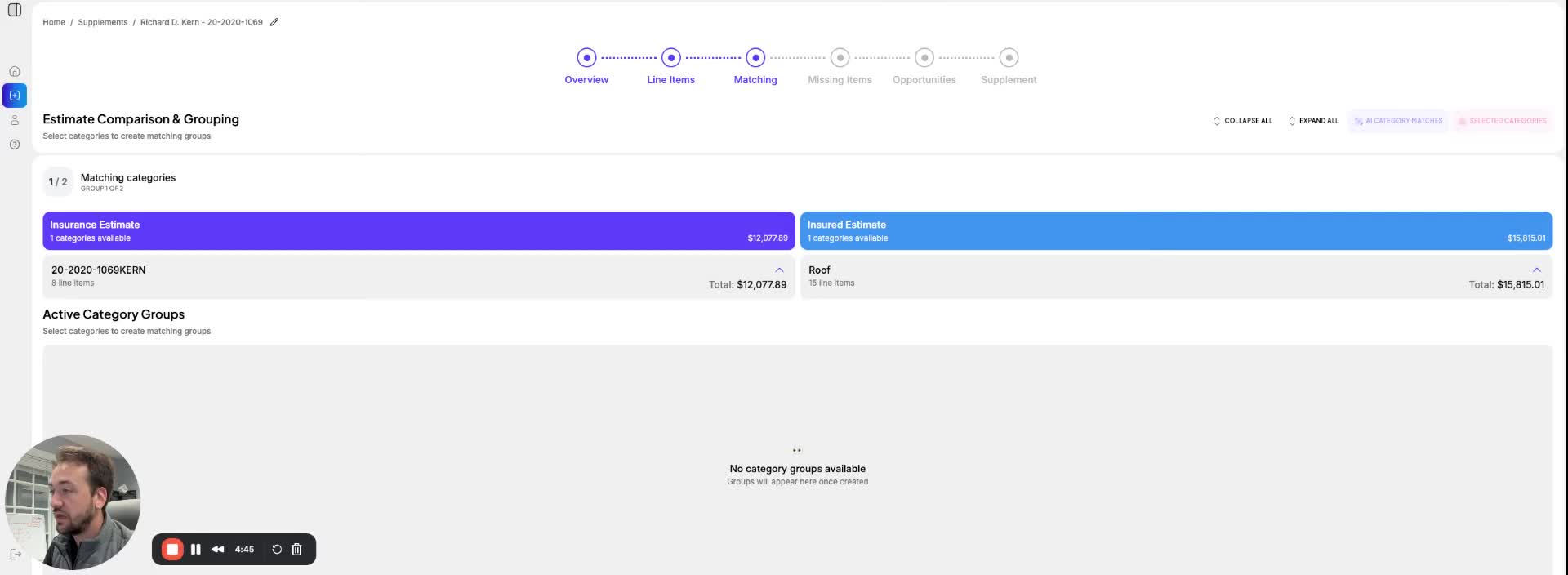
- The system includes AI-assisted category and room matching features.
- Users can access these features by clicking on 'AI Category Matches' if available.
- In cases where room names differ significantly, AI matching may not be triggered.
Manual Matching Process 0:39
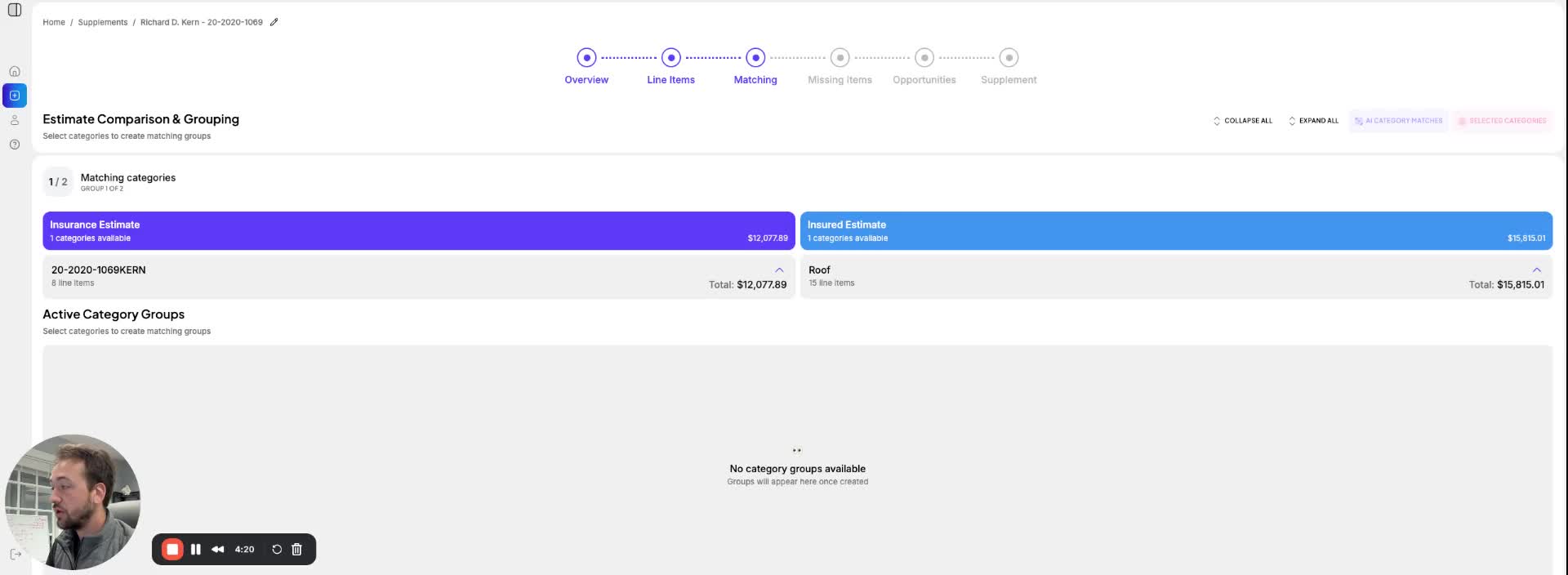
To manually match rooms:
- Select the room(s) from the insurance estimate.
- Select the corresponding room(s) from the insured estimate.
- Click on 'Selected Categories' to open a pop-up or choose 'Create Group'.
- This action links the selected insured room to the insurance room, indicating they are equivalent for comparison purposes.
Link to Loom
https://loom.com/share/c2d208fedf0b41d5a50691bc7e7b52e9