
How to Review Your Supplement Document in TurboClaim?
Supplement and Comparison Document Review
Overview
This documentation outlines the process for reviewing the final supplement or comparison document after completing the opportunity section. It details how to navigate through omitted items, agreed items, negotiation arguments, and white labeling options.
Navigating the Supplement Document 0:01
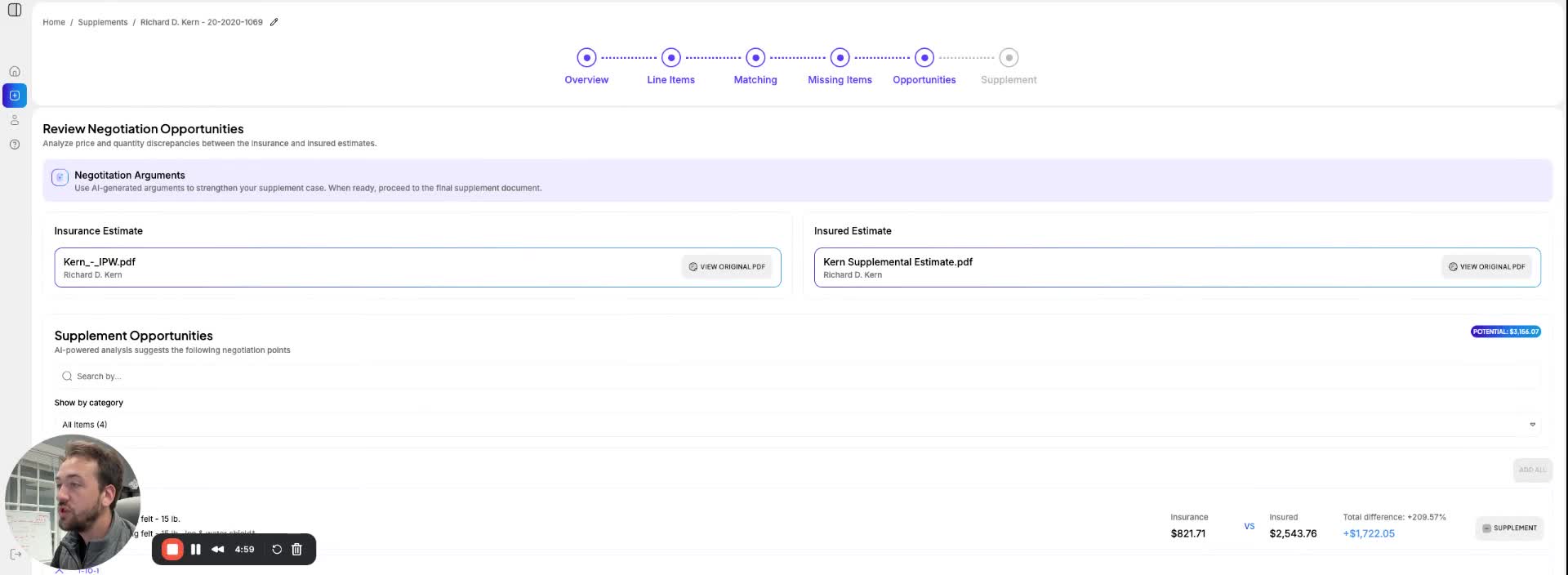
- After completing the opportunity section, navigate to the bottom of the page to review the final supplement document.
- Click on the designated link to access the overview information.
- The document displays all items being supplemented, categorized by omitted items and agreed items.
Viewing Omitted Items 0:15
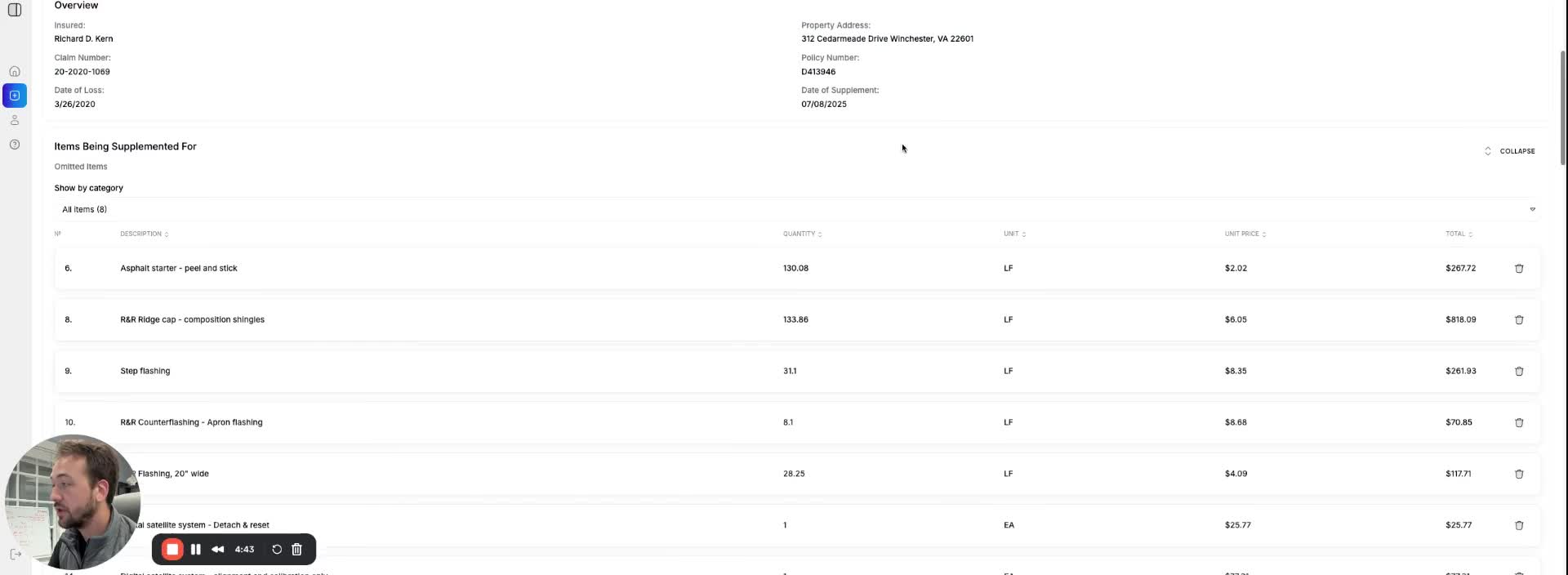
- Omitted items are displayed first, allowing you to check them on a room-by-room basis.
- Use the category filter to select specific rooms and view the items omitted by the insurance company.
- You can collapse this section to minimize scrolling.
Reviewing Agreed Items 0:39
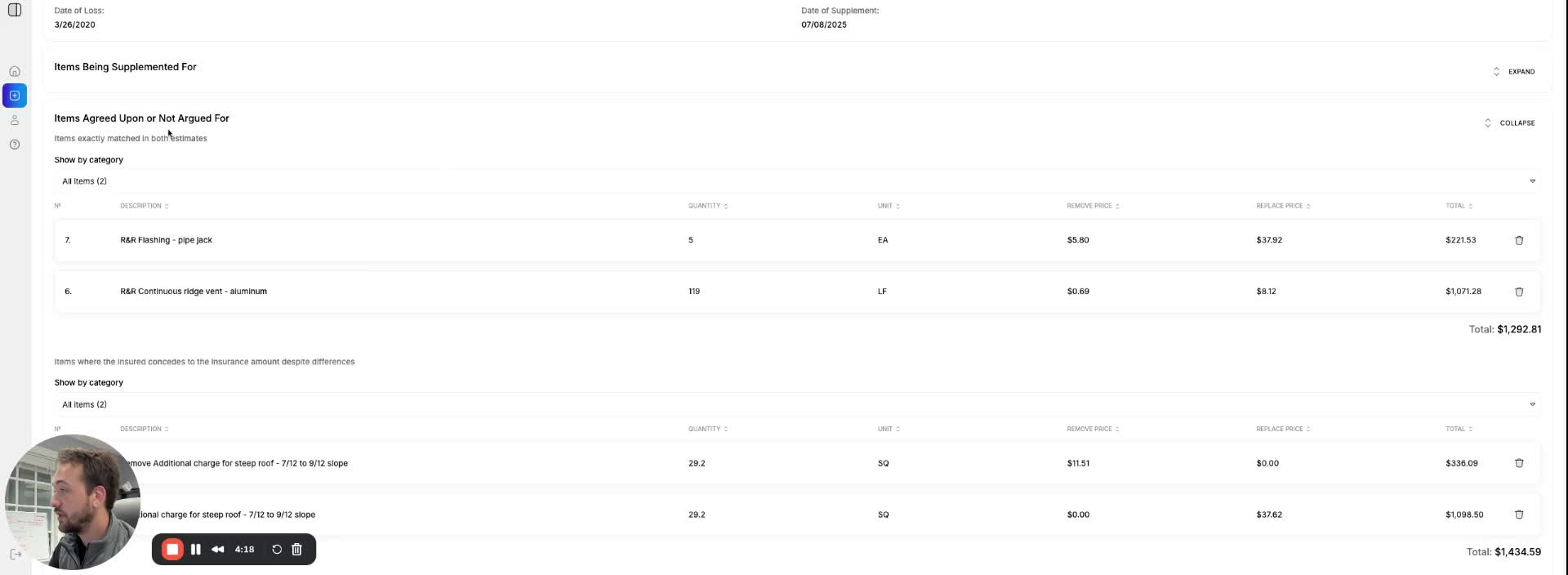
- Items that match in both estimates are categorized as agreed items.
- If you wish to exclude any agreed items from the document, click the delete button next to the item.
Filtering Line Items 1:01
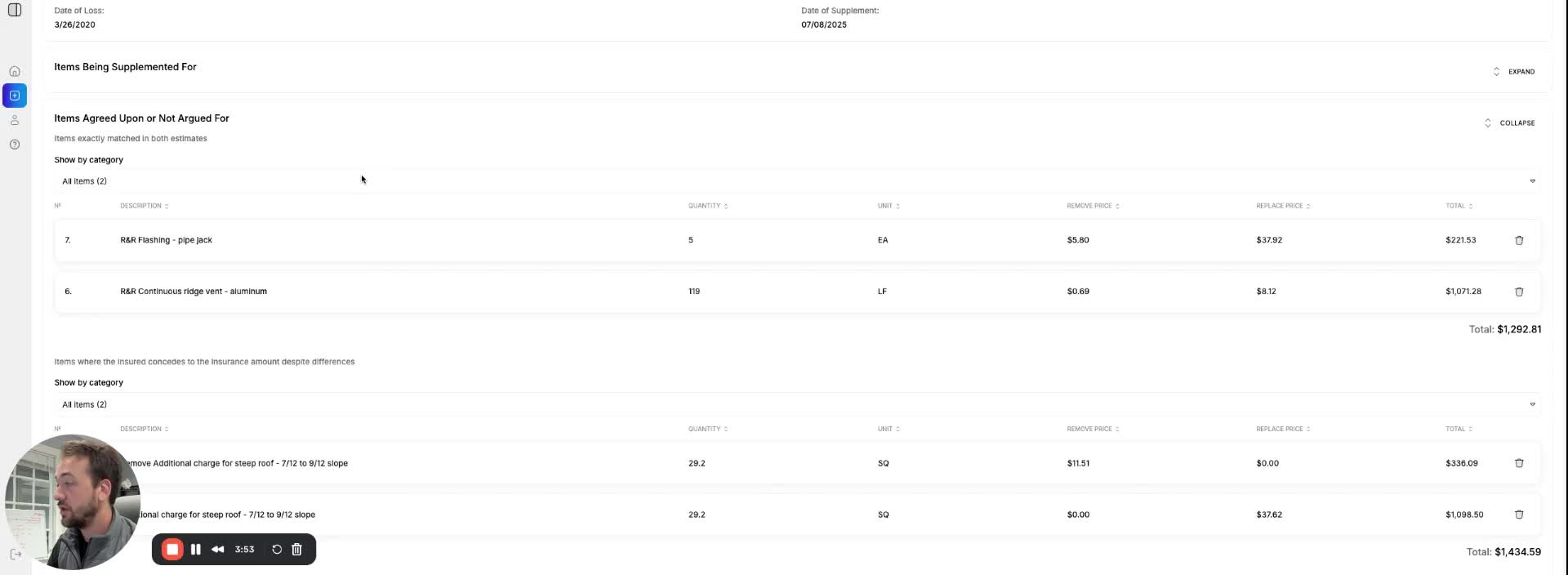
- You can filter line items to show only those where the insured can contest the insurance amount despite differences.
- To remove any filtered items, click the delete button, and you can also filter by area.
Editing Negotiation Arguments 1:21
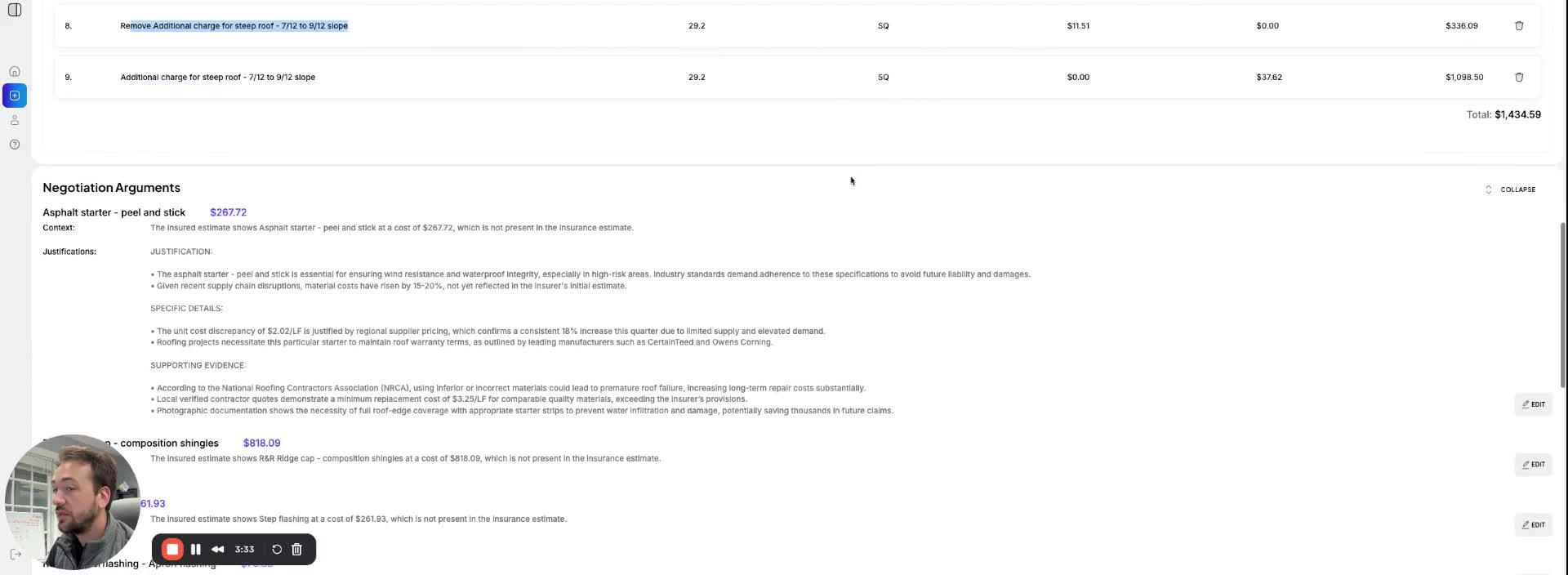
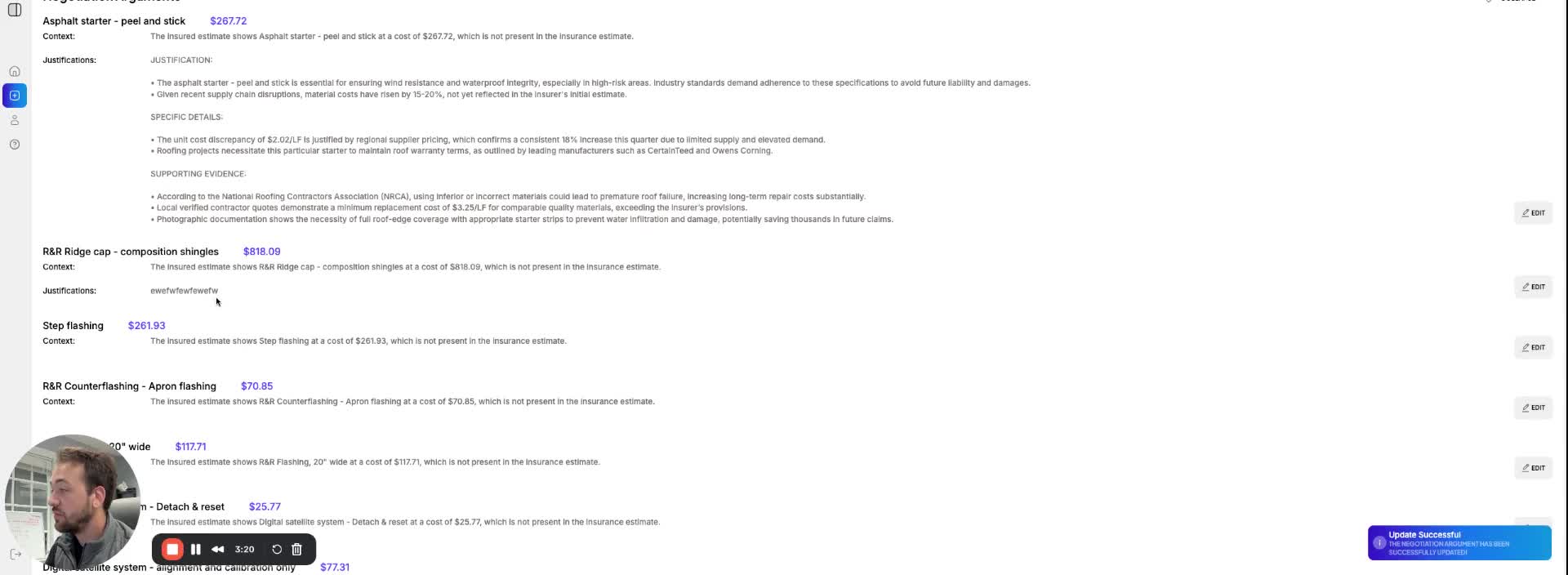
- At the bottom of the document, all negotiation arguments are listed.
- To edit an argument, click the edit button, write your own, or generate one using AI, then save your changes.
White Labeling the Document 1:34
- To white label your document, upload your logo in the account settings.
- Click the option to remove the Turbo Claim logo, which will replace it with your logo on the document.
Link to Loom
https://loom.com/share/cb98fa62aecd4956aacbd00caa7f6757